
Access the system within the client’s environment that you wish to contact. It’s important to note that each client has an exclusive environment, which means all registrations and information generated in this space are confidential and private.
Open the quotation you want to discuss by clicking the “Details” button (represented by the eye icon on the right side of the quotation).

Next, locate the “Notes” table and click the “Message Client” button.
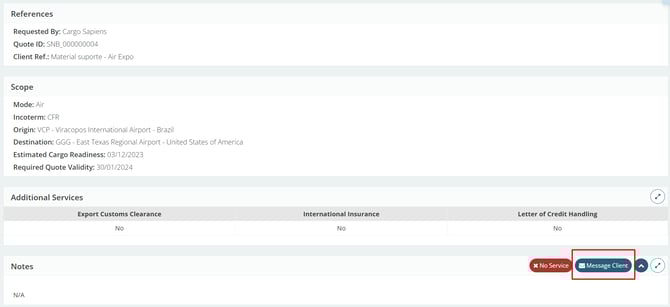
It will always be necessary to open a quote to carry out this communication. The customer will receive this message by email.
It is important to note that the SPOT quotation does not need to be open for the communication to take place. If it is closed, simply go to the “Communication with Client” table at the top of the screen and click the “Message Client” button on the right side of the screen.
In the case of BIDs, the button for communication with the client will be located at the top right of the screen, in the table labeled “Communication with Client.”

A warning will appear informing you that this field should not be used to send freight rates — it should only be used for information clarification or confirmation.
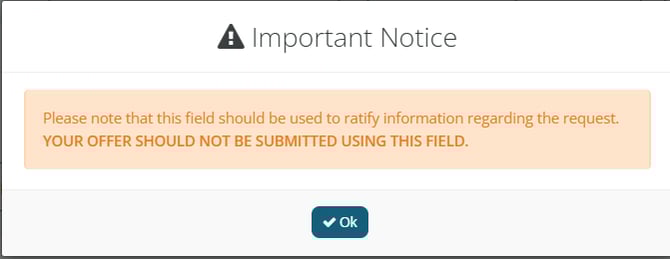
Next, write your message and attach any files if necessary.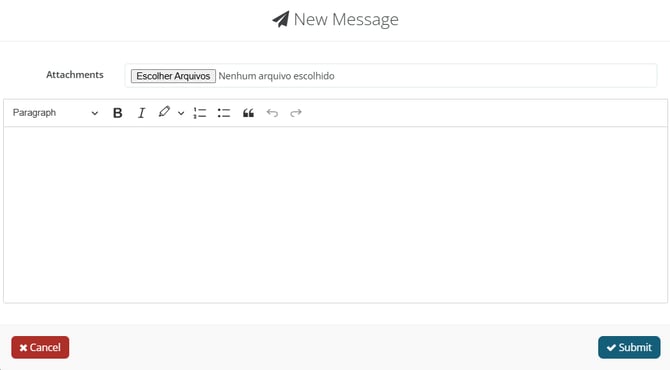
Click “Submit.” To view the message you sent or check for a response, click “View” at the top right corner of the BID screen, where you were previously.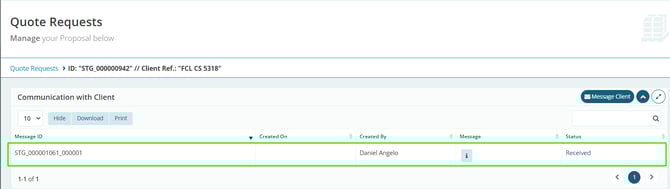
By clicking the blue “i” icon, you can review the message you sent. When the client replies, you’ll receive the message by email, but it will also be recorded in the system in the same location.
For SPOT quotations, the system works similarly. Click the eye icon button on the right side of the SPOT quotation, locate the “Message Client” button, and click it.
Confirm the warning requesting not to send rates through this field, and then type the message to be sent.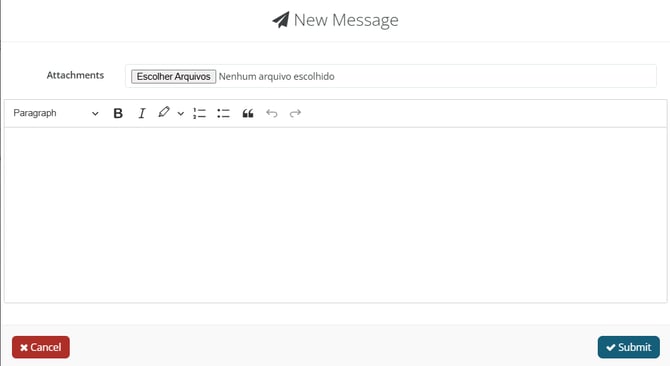
Just like in the BID, under “Communication with Client,” you can view your message by clicking “View.”
It is important to note that the BID does not need to be unlocked for the communication to take place. If it is locked, simply go to the “Communication with Client” table at the top of the screen and click the “Message Client” button.