
Access the system in the client's environment for which you want to check the negotiated spread and payment term. It is important to emphasize that each client has an exclusive environment, which means that all registrations and information generated in that space are confidential and private.
Next, in the left sidebar menu, click on "Terms".
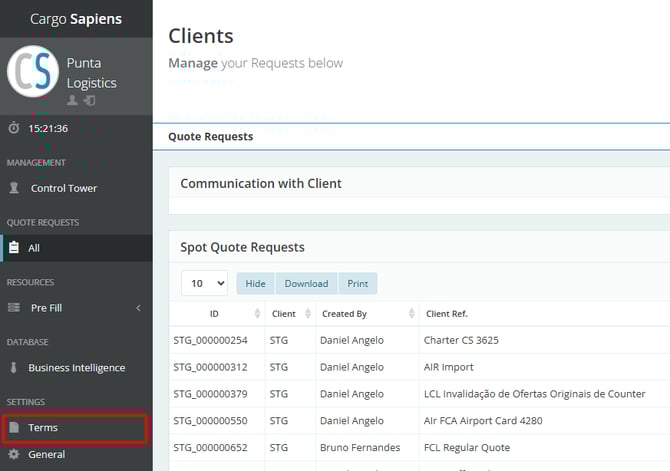
You will have access to three tabs, two of which we will discuss in this tutorial:
-
The payment terms tab (where you can see the negotiated payment term and edit it).
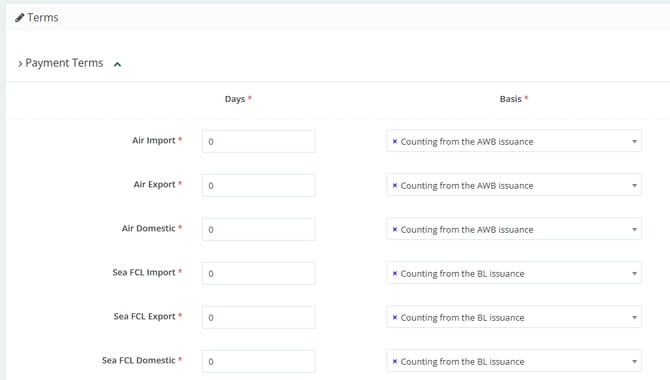
In it, you must insert how many calendar days the client has to pay, and in the basis selection, choose from which moment of the shipment this term starts to count: from the issuance of the BL (Bill of Lading), from the issuance of the invoice, from the departure from the place of loading, and from the arrival at the place of unloading of the goods.
- The Spread tab (where you can check what the registered spread is for this client).
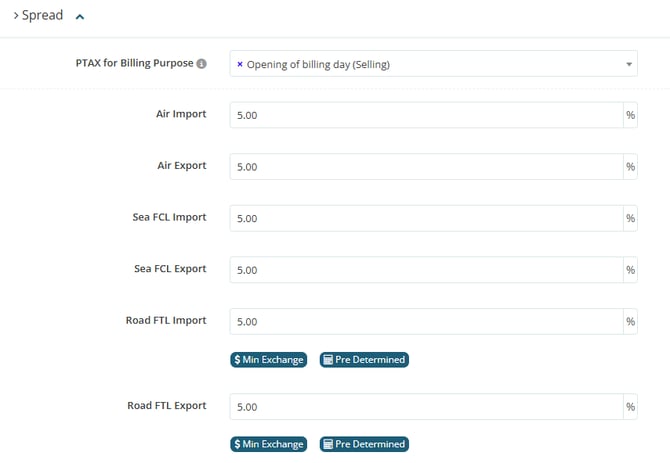
In this tab, you can also change which PTAX will be used by the system during conversion: opening of the day (sale), opening of the day (purchase), closing of the previous day (sale), and closing of the previous day (purchase).
If the Spread is blocked, as shown in the image above (the image from the original text, which was not provided here, but is referenced), it is necessary to contact the client, as they need to be informed about the change. This way, they will update your registration. Otherwise, you can insert the percentage for each of the modals.
To check about the "Remarks" tab, access the tutorial on how to automate the sending of observations.