Access the system in the environment where you intend to send your proposal for a Spot quote. It is important to emphasize that each client has an exclusive environment, which means that all registrations and information generated in this space are confidential and private.
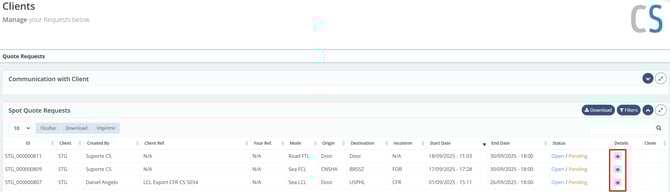
It is essential to highlight that, in order for you to respond to a SPOT quotation, its status must be set to “Open”, visible in the “Status” column next to the eye icon. If the quotation appears as “Closed”, this indicates that the deadline has already been reached.
On the other hand, if the status is “Declined”, it means that the proposed rate was rejected by the client. If the quotation is marked as “Nominated”, this indicates that you have been designated for that specific route.
Additionally, the “Pending” status means that the quotation has not yet been filled in. If the quotation appears as “Closed / Pending”, it means that no rate was submitted before the quotation deadline; otherwise, the status will be “Responded”.
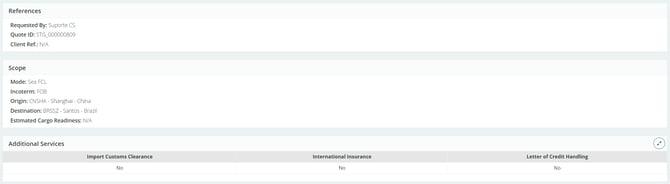
When you begin filling it out, the first three tabs will correspond to the scope of the quotation. There, you will be able to view the quotation details, such as Mode, Incoterm, Origin, Destination, Estimated Cargo Readiness, Required Quotation Validity, and whether additional services are needed, among others.
In the following five tabs, you will find additional information about the quotation, including the notes provided by the client, additional remarks, details about the type of cargo and its description, cargo details (Packing List), and the total cargo value.
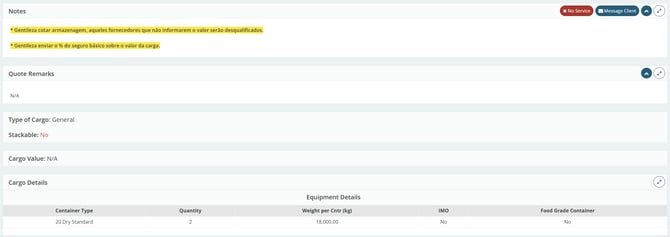
In the Notes tab, you will find two buttons: one to indicate the unavailability of services for this route (No Service button) and another to send a message to the client (Message Client button).

It is essential to emphasize that, if you are unable to serve this route, you must click “No Service.” This action is important because it informs the client that the quotation has been acknowledged rather than ignored; it simply means that it was not possible to fulfill the request.
Finally, your input will begin with the screen below:
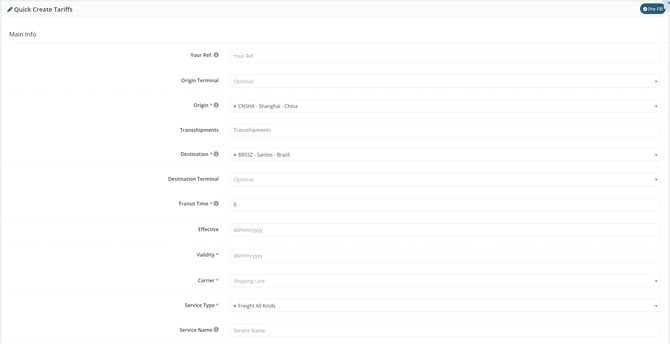
- Supplier Ref.: This reference field can be used for an internal reference.
- Origin: This field is pre-filled with the port/airport selected by the client.
- Transshipment: If there are any transshipments, you will enter them here.
- Transit Time: Here, you will enter the transit time in days.
- Effective: The date from which your rate will be valid. The system automatically pre-fills this field with the date when the input is being made.
- Validity: This refers to how long the rates you enter will remain valid.
- Carrier: Select the shipping line (ocean carrier) or airline, depending on the quotation’s mode.
- Service:
- For FCL: The “Service Name” button will appear to enter the name of the carrier’s service. The “Service Type” button will also appear, where you can choose between “Freight All Kinds” (a term used in cargo transportation indicating a freight rate applied without distinction for specific characteristics of the goods) or other types of service.
- For LCL: The “Service Type” button will appear, where you can choose between “Freight All Kinds” or “Dangerous Cargo.”
- For Air: The “Service Type” button will appear, where you must select the type of service for that shipment, such as “STD” (Standard), “EXP” (Express), among others.
The following fields will vary according to the transport mode, depending on the specifics of the shipment.
- Maritime FCL:
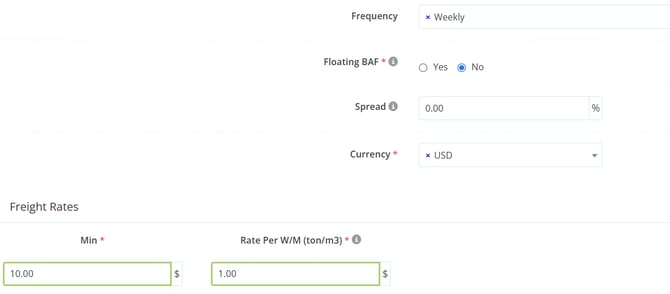
- Frequency: The frequency at which you can handle this shipment, whether daily, weekly, or monthly.
- Floating BAF: Indicate whether the BAF (Bunker Adjustment Factor/fuel) rate may fluctuate.
- DTHC Included in Ocean Freight: Indicate whether the DTHC (Destination Terminal Handling Charges) is included in the ocean freight. This field will only appear in the case of exports and depending on the client’s requirements.
- Spread: If this field is unlocked (as it depends on the client’s compliance settings), enter the spread percentage for this shipment.
- Currency: The currency of the international freight.
- Freight Rates per Container: Enter the freight rates per container. There will be a specific field for each container type selected by the client, considering that values may differ.
- Free Time for Detention and Demurrage: Enter the number of free days for detention and demurrage that you can offer both at origin and at destination. To make it easier, the system highlights in green the mandatory field, according to the Incoterm.
- Marítimo LCL:
- Frequência: frequência em que você consegue atender esse embarque, seja diariamente, semanalmente ou mensalmente.
- BAF Flutuante: informe se o valor do BAF (combustível) pode flutuar.
- Spread: caso o campo esteja desbloqueado (uma vez que isso depende das configurações de conformidade do cliente), insira a porcentagem de spread para este embarque.
- Moeda: moeda do frete internacional.
- Tarifas de Frete:
- Mínimo: caso você tenha um valor mínimo para o embarque, insira nesse campo.
- Tarifa por Ton: insira o valor por tonelada (W/M).
- Air Freight:
- Aircraft Type: Select the type of aircraft to be used, such as PAX (passenger aircraft), CAO (cargo aircraft), or another option from the list.
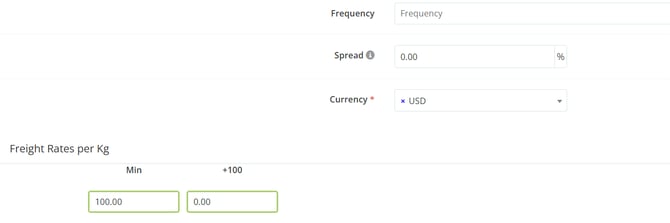
- Frequency: The frequency at which you can handle this shipment; select one or more options among the days of the week.
- Spread: If this field is unlocked (as it depends on the client’s compliance settings), enter the spread percentage for this shipment.
- Currency: The currency of the international freight.
-
Freight Rates per KG:
-
-
-
Minimum: If you have a minimum charge for the shipment, enter it in this field.
-
Weight Range: The number displayed in the field (for example, “+500”) corresponds to the weight range of the air transport to be rated, following the IATA standard. For instance, if the cargo weighs 50 kg, the field will display “+45,” indicating that the weight falls within that range.
-
-
Next, you will have fields for Freight Surcharges, Origin Charges, and Destination Charges to be filled in. Simply click the green “Add Origin Charge” button to add a new line.
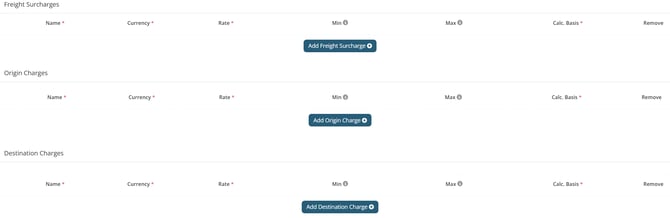
Once this is done, fill in the charge information, such as the name, currency, tariff amount, minimum and maximum to be charged (if applicable), and the calculation basis.

In maritime FCL, the system will pre-fill some charges according to the carriers’ public tariff table to make the process easier; however, it is necessary to verify the information to ensure it is correct and up to date.
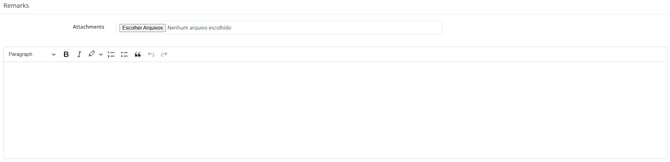
Once the charges have been completed, enter any quotation remarks and/or attachments if necessary, and then click “Proceed.”
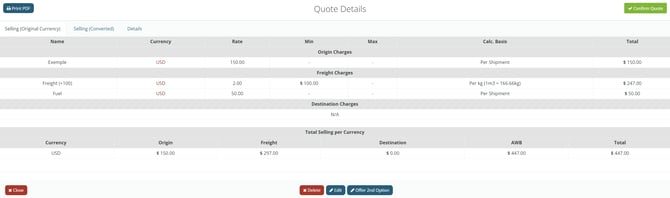
The system will open a screen to review the values. Verify each item one by one and, if they have been entered correctly, click "Confirm Quote" in the top-right corner of the screen to confirm the submission and complete the process.