
Access the system in the environment where you intend to submit your proposal for a BID quotation. It is important to note that each client has an exclusive environment, meaning that all records and information generated in this space are confidential and private.
For this example, we will use an import shipment with the EXW incoterm.
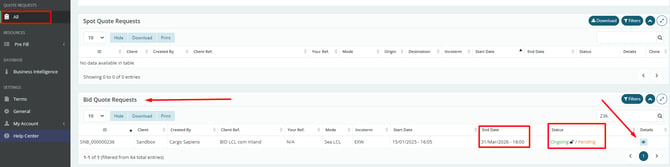
In the left-hand menu, click on “All” under the “Quotation Requests” section. In the “BID Quotation Requests” table, locate the desired quotation and click on the eye icon in the “Details” column to access the BID.
Always pay attention to the Deadline for submitting your proposal and the BID Status.
When it is marked as “In Progress” and shows an open lock icon, it is available for you to submit your offer.
Before downloading the spreadsheet to fill in the required fields, we will briefly explain the fields within the BID.
-
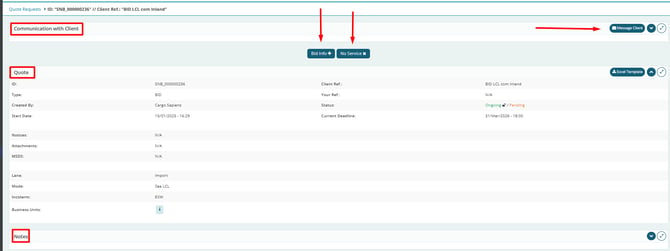
Communication with Client – click the “Message Client” button to send any questions or files, if necessary.
-
Please note that no pricing information from the proposal should be shared in this field.
-
-
Quote – click the “BID Info” button to view the quotation details.
-
If you are unable or unwilling to submit a proposal, click the “No Service” button. This way, the customer will be aware that you received the request and will have a response.
-
- Notes – additional information and guidelines are usually provided by the customer in this field. It is important to always review and read all the content carefully.
Next, in the “Proposal” section, click the “Download Rates” button to access the BID spreadsheet, as mentioned earlier.
Although there is an option to “Create Contracts” to register freight and additional charges directly in the platform, we recommend using the spreadsheet and then importing it into the system. This is because the process is more comprehensive, covering multiple routes and fields to be completed, which makes visualization and organization easier, as shown below.
Additionally, when uploading rates through the spreadsheet, you will have access to the platform’s error logs, which help guide you in filling out the information correctly.

From this point on, we will go through the tabs and columns of the spreadsheet to understand how it works and what needs to be filled in.
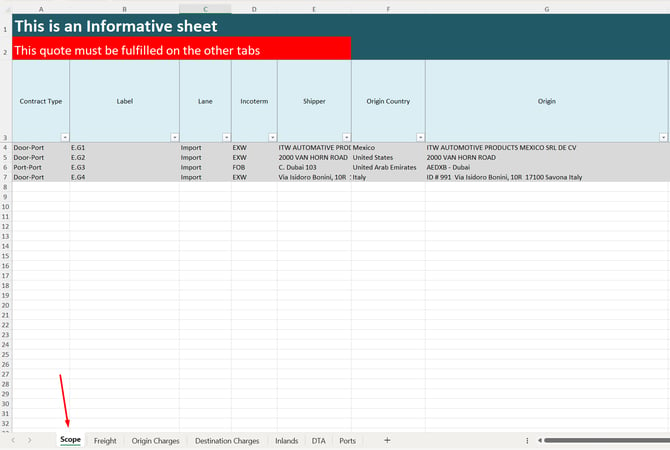
In the "Scope" tab, as the name suggests, the details of the quote scope are presented, including information such as Contract Type (Door-to-Door, Port-to-Port, etc.), Incoterm, Origin, and Destination, among others. This tab is for reference only and should not be modified.
The mandatory fields are highlighted in dark blue.
Therefore, the remaining columns are optional, depending on the requirements of the transport mode or route, for example.
For LCL BIDs that include Inland, the completion should start with this tab. If there is no Inland, it should begin with the Freight tab.
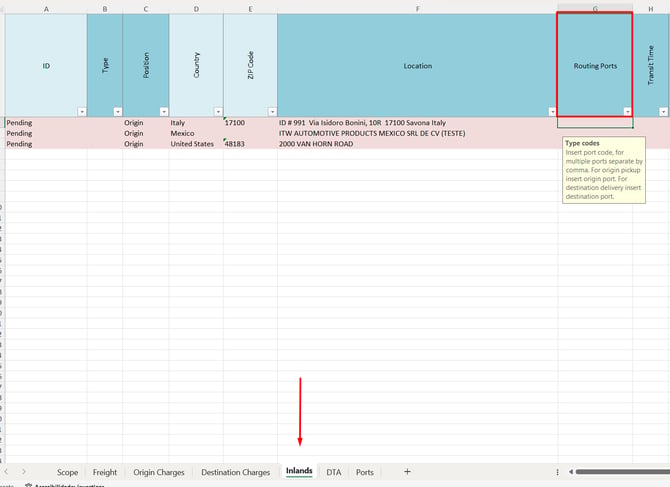
In the Inland tab, column F ("Location") must contain the address where the pickup or delivery will take place, according to the "Position" defined in column C. If the position is set as Origin, the address provided will be for pickup at origin. If it is set as Destination, it will be a delivery address at destination.
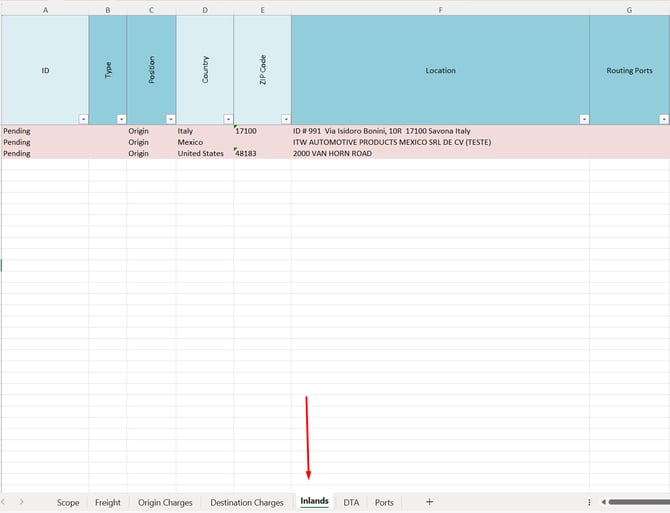
In column B ("Type"), indicate whether the inland transport will be carried out with a dedicated vehicle (FTL) or consolidated (LTL).
The ID column must not be modified.
Next, continue filling in the information to the right, ensuring that all mandatory fields highlighted in dark blue are completed.
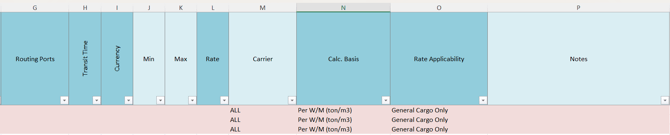
Do not include mandatory costs in this field; if there are Inland surcharges, follow the specific tutorial for this setup.
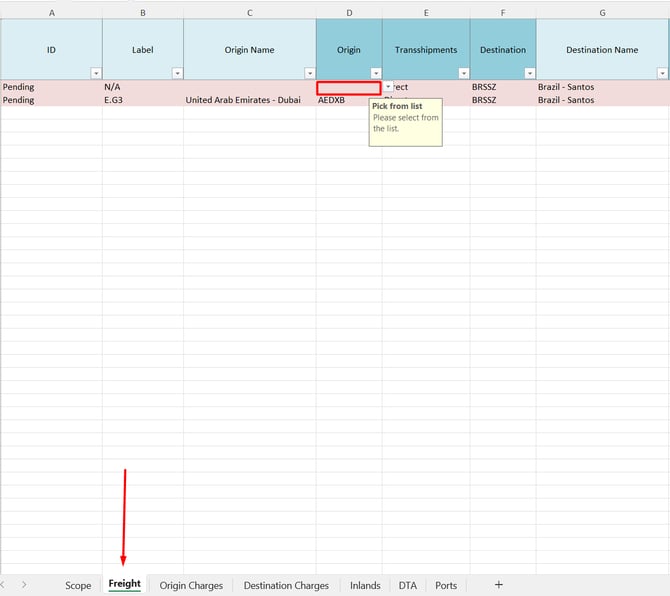
In the "Freight" tab, since this case includes Inland, the "Origin" column must repeat the same port entered in the Inland tab under "Routing Ports." Therefore, the row will have the origin field left blank and the destination field filled in, as shown in the example below. If this were an export or a delivery, the completion would be the opposite.
Repeat this row in the Freight tab for each port entered in the Inland tab. If there is only one destination, only one row will be required. If there are multiple ports, the same port must be replicated in the corresponding rows.
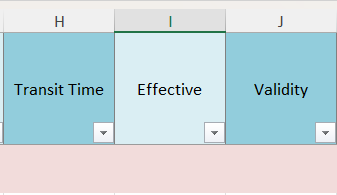
Continuing in the "Freight" tab, the next mandatory fields are "Transit Time" and "Validity Date." The "Effective Date" field is not mandatory.
-
Transit Time – estimated for the international freight operation. If there is pickup or delivery in the BID, this value will be added to the one entered in the "Inland" tab.
-
Effective Date – the date from which your pricing becomes valid.
-
Validity Date – the date until which the proposal will remain valid for the client.
Please note that each BID will have a different configuration and, therefore, different fields to be completed.
Next, note that there are columns to fill in the maximum dimensions that the client’s cargo must meet for the shipment to be valid.
Then, there is an optional column to indicate the "Frequency", selecting it from the predefined dropdown list.
In the "Notes" field, you may add any additional comments; if the column is already filled in, these are notes provided by the client.

As mandatory fields, you must also complete "Currency" (dropdown list), the "Min" rate value, and the "Rate" (numeric), all related to the international freight cost.
If there is a "Freight Surcharge", it must be entered in the specific columns on the right: "Surcharge 1", "Surcharge 2", and so on.
Below is an example of how to fill it out:

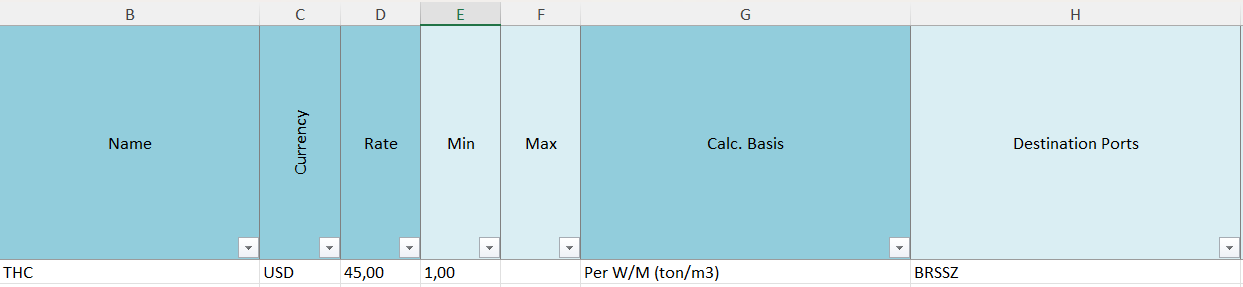
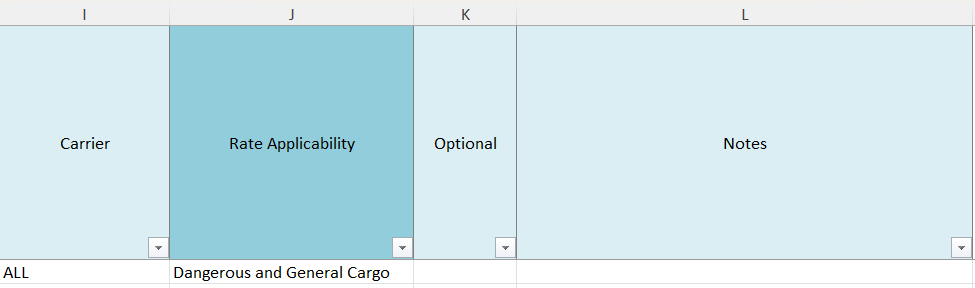
Finally, once all fields have been completed, save the spreadsheet and click on "Bulk Upload Tariffs" in the platform to upload it to the system.

