
The Counteroffer functionality of Cargo Sapiens was created to streamline negotiations and provide greater control and transparency in the closing process.
Instead of parallel exchanges via email or WhatsApp, the entire negotiation takes place directly within the system, with a centralized history and clear rules for all parties involved.
What the counteroffer solves in practice
-
Allows negotiation of values and conditions without leaving the platform.
-
Maintains full traceability of who proposed, who approved, and when.
How the system facilitates negotiation
-
The client can set a response deadline, bringing predictability and avoiding negotiations that remain open indefinitely.
-
The entire negotiation history is visible within the system.
-
The system automatically calculates the savings generated by the negotiation, comparing the initial value with the final agreed amount.
-
Possibility to integrate approval workflows, ensuring negotiations follow internal rules.
See below how to carry it out.
Access the system in the environment where you intend to open a SPOT quotation. It is important to highlight that each client has an exclusive environment, which means that all registrations and information generated in that space are confidential and private.
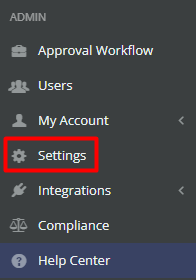
First, from the left side menu, go to “Settings”, within the “Admin” section.
Inside the settings, you need to search for “Counter-Offer”. If it is disabled, simply select “Yes” in the modals where you want to enable counteroffers; only then will it be possible to carry out the process.
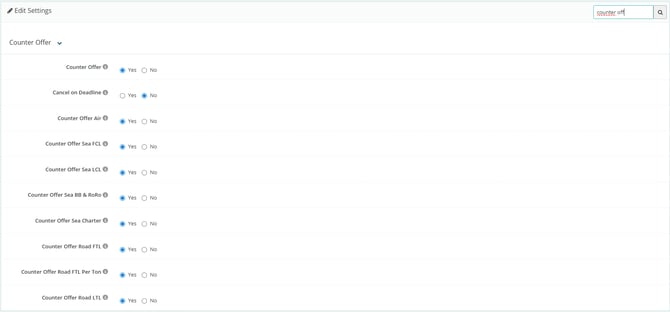
The “Cancel at Final Deadline” function ensures that, if counteroffers are not responded to within the deadline, the system will automatically cancel them.
If the counteroffer button is not appearing, check again whether the quotation is closed and whether the configuration is enabled for that specific modal.
With the configuration enabled, access the details of a quotation that has already been completed, with the status “Closed”, to proceed with the counteroffer.

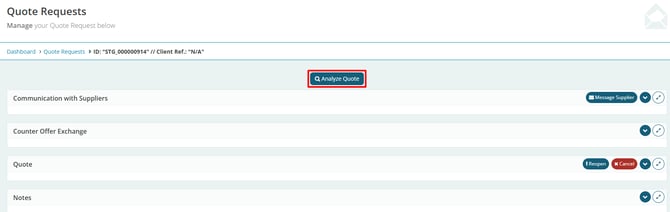
Click the “Analyze Quotation” button:
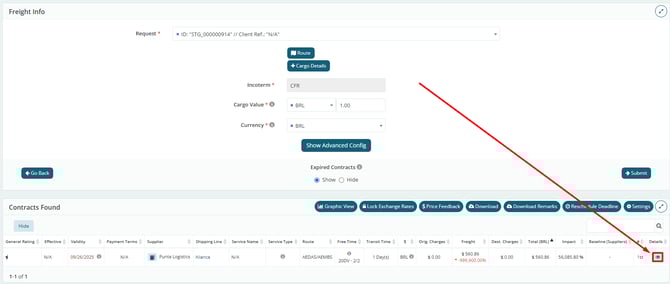
Then, open the details of the quotation for which you want to send the counteroffer:
In the “Quotation Details” tab, select the “Counterproposal” option:

The counterproposal screen will be displayed:
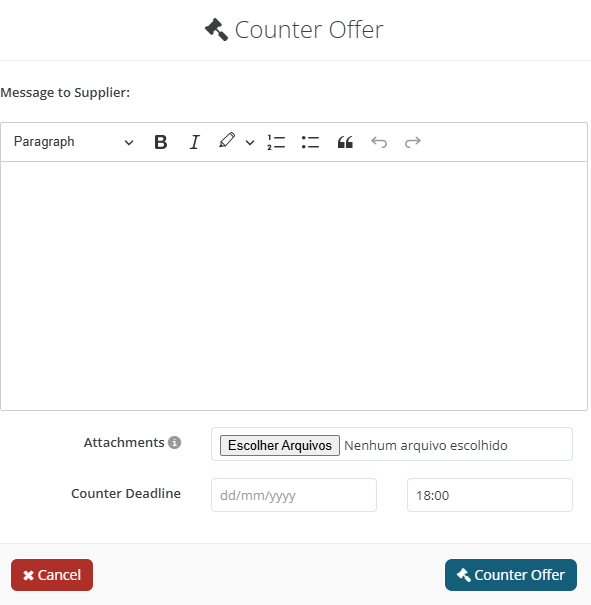
There, you can write a message and/or attach a file for the logistics provider. Finally, set the “Counterproposal Final Deadline”, that is, until when the supplier can respond with the price adjustment.
Important: The Counteroffer functionality should be used exclusively for negotiating values. Do not use counteroffers for operational adjustments to the quotation. When this happens, the system treats these adjustments as negotiations, which causes the calculated savings to no longer reflect the actual cost reduction.
After confirming by clicking “Counter Offer”, the quotation is sent back to the carrier, who may or may not adjust the values. After the carrier’s response and the end of the response deadline, when analyzing the quotation, the new offer will be highlighted in green on the “Analyze Quotation” screen.