
How to Register a User in the System
Use the Users screen to create new accesses in your company’s environment.
Before creating a user, confirm which permissions they should have. In the current registration process, the Role field is automatically filled as Admin, which grants administrative permissions to the user.
This means the user will be able to perform all actions within the company environment. If the user requires a different permission level, please contact the support team or the Customer Success Manager responsible for your account before completing the registration.
1. Access the Users Screen
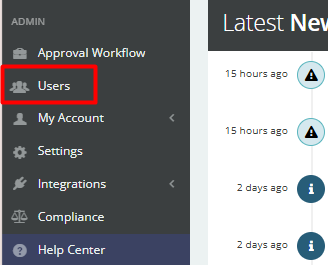
In the left-side menu, go to the Admin section and click on Users.
2. Click on Add User
On the Users screen, click on +Add User in the upper-right corner of the table.

3. Fill in the Required Fields
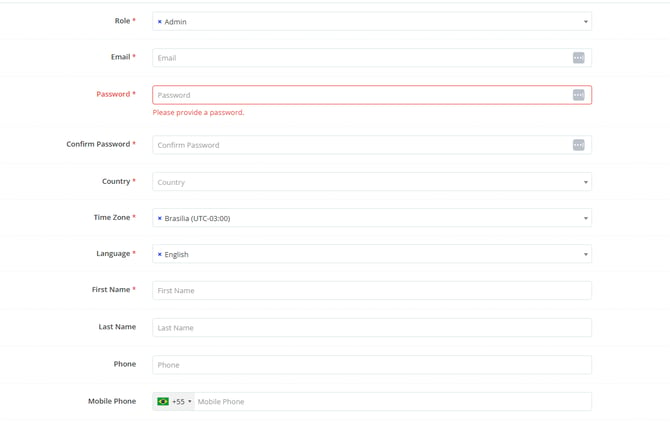
On the registration screen, fill in the form fields. Required fields are marked with a red asterisk next to the field name.
In the form, enter the user’s main information.
4. Enter the Email Address and Temporary Password
Fill in the E-mail field with the address the user will use to access the system.
Then, create a temporary password in the Password field and enter the same password again in the Confirm Password field.
5. Configure Country, Time Zone, and Language
Select the user’s Country and Time Zone. Then, choose the system Language. The available options in this tutorial are:
- english
- portuguese
- spanish
These settings help the system display information appropriately for the user, such as the interface language and time-related information.
6. Define Whether the User Will Receive the KPI Report
Enable the Receive KPI Report option if the user should receive the system KPIs weekly by email. Leave this option disabled if the user does not need to track KPIs via email.
7. Configure the Approval Flow Group List
The Approval Flow Group List field defines whether the user will participate in any approval flows configured in the environment.
Use this field when the user needs to approve, monitor, or participate in approval flows. If you are unsure which group to select, contact the support team before completing the registration.