
Access the system in the environment where you intend to open a SPOT quotation. It is important to note that each client has an exclusive environment, which means that all registrations and information generated in this space are confidential and private.
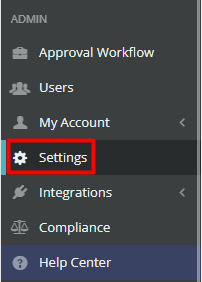
You will need to enable the approval workflow permission for sending quotations. In the left side menu, click on “Settings”, under the “Admin” section.
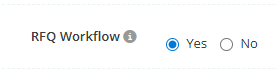
Search for “RFQ Workflow ”. If it is disabled, simply select “Yes” to enable this option.
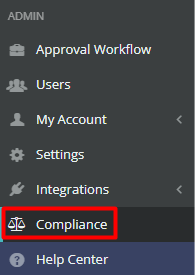
In the left side menu, click on “Compliance”, under the “Admin” section.
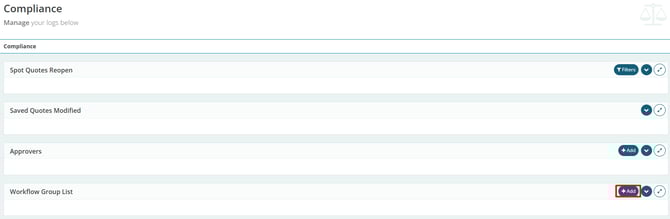
Then click “Add” in the “Approval Workflow Group List” section to create the new group.
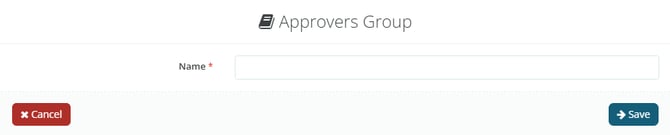
Finally, specify the name of the group being created:
Next, click “Add” in the “Approvers” section.
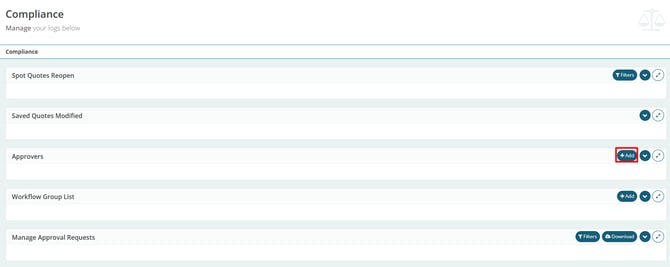
Within the new approver configuration, you will need to define:
-
Approver: Which user (already registered on the platform) will be the new approver.
-
Type: Which workflow the approver will belong to.
-
Priority: The priority position of the approver during an approval process (The lower the approver's position on the list—e.g., 1st, 2nd, 3rd—the sooner they will be called to approve the process. It is also possible to include more than one approver in the same workflow. This allows for multi-step approval processes with several people involved. In this setup, the 2nd approver must accept—or not—the approval made by the 1st one.)
-
Approval Workflow Group List: Which approval group (created in the previous step) the approver will be part of.
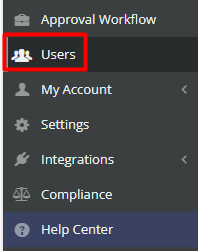
Finally, for people to be added, you must open the user who will be part of the approval workflow. In the left side menu, click “Users”, under the “Admin” section:
Click the eye icon to view the user profile:

Edit the user:
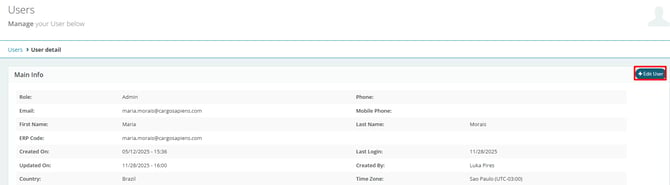
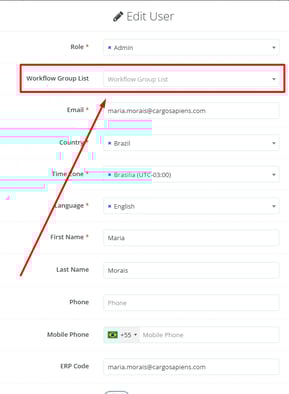
And in the “Approval Workflow Group List” section, select which group the user will belong to.
This way, when you return to the “Approval Groups” menu, you will see the group name, users, and approvers:

With this setup, all created quotations will be automatically sent to the approver. Only after approval will they be forwarded to the market.