
Use the International Air SPOT quote to request international freight proposals when the cargo will be transported by air.
This option is usually recommended for operations that require shorter transit times. In general, air freight is faster, but it may have a higher cost compared to other transportation modes.
How to Start an Air SPOT Quote
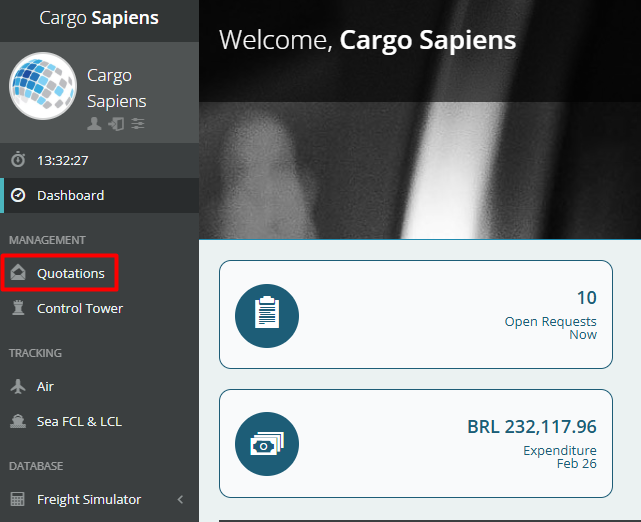
1. Go to the Quotes screen
In the left-side menu, under the Management section, click Quotes.
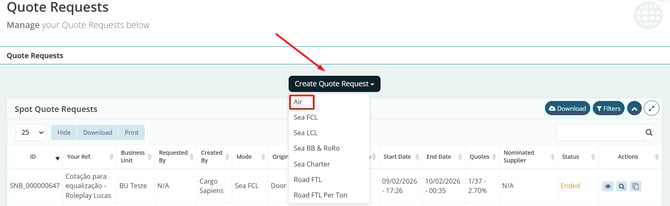
2. Click Create Quote Request
On the requests screen, click Create Quote Request, then select the Air mode.
Filling in the Main Information
3. Read Each Field Carefully
Required fields are marked with a red asterisk, except for fields that, according to market practice, are already considered mandatory, such as providing at least one origin and one destination.
Even so, we recommend filling in as much information as possible to support the logistics provider’s analysis and response.
-
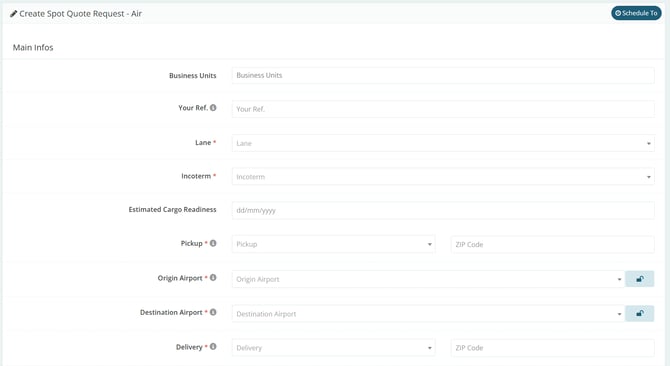
Business Units: Select the BU this quote belongs to.
-
Your Ref.: Enter an internal reference to identify the quote.
-
Lane: Select whether the quote is for an import, export, or domestic shipment.
-
Incoterm: Based on the selected shipment type, choose the route Incoterm.
-
Estimated Cargo Readiness: Select the date when the cargo will be ready to start transportation.
-
Pickup: Depending on the Incoterm, click Pickup and search for the address where the cargo will be collected. This field is automatically connected to Google Maps to make the search more efficient.
-
Origin Airport: Depending on the Incoterm and mode, select the origin airport.
-
Destination Airport: Depending on the Incoterm and mode, select the destination airport.
-
Delivery: Depending on the Incoterm, select the delivery address.
-
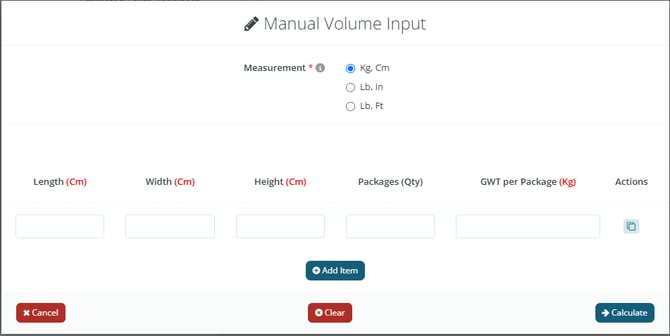
Cargo Details: Enter your Packing List in this field.
-
For Air shipments, you must enter the cargo dimensions in kilograms/centimeters or in pounds/inches. This will automatically calculate the gross weight (GWT), chargeable weight, m³, and number of packages.
- If there are multiple volumes, to avoid entering each item individually in the Cargo Details button, you can enter the shipment totals directly in the gross weight, m³, and number of packages fields. The chargeable weight will be calculated automatically. This information is sufficient for the logistics provider to prepare the pricing.
-
-
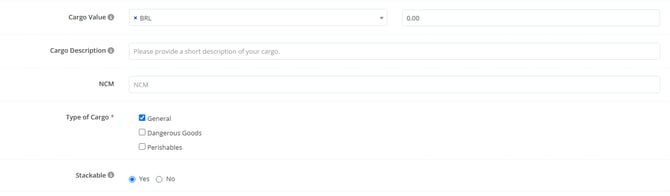
Cargo Value: Add the cargo value.
-
Cargo Description: Add a cargo description to complement the information for the logistics provider.
-
NCM: If possible, add the NCM. If there is more than one, separate them with commas.
-
Type of Cargo: Select the cargo type.
-
Important: when dangerous or perishable cargo is selected, additional fields will open for completion.
-
In “DG UN Quantity”, enter the number of UNs that will be shipped. The “Additional Details” field can be used to describe further cargo information.
-
-
Stackable: indicate whether the cargo is stackable or not.
-
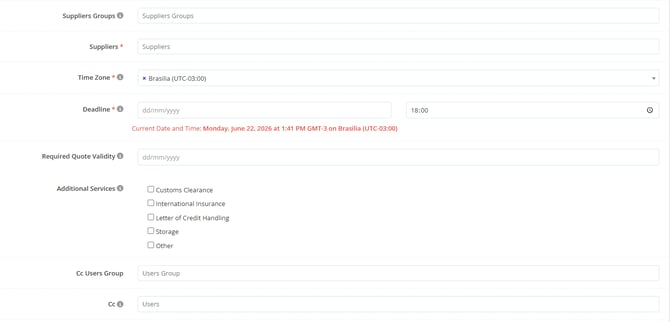
Suppliers Groups: Add a supplier group to this quotation.
-
Suppliers: If you prefer not to add a group, add suppliers individually in this field.
-
Time Zone: Select your time zone. It will be converted to the time zone of other suppliers with different registered time zones.
-
Deadline: Select the final deadline for logistics providers to submit their proposals.
- Required Quote Validity: Indicate the ideal validity period for logistics providers’ pricing. Attention: This field does not block the provider from entering a shorter validity; it only serves as guidance.
- Additional Services:
-
Customs Clearance: Refers to the cargo clearance process at customs, both for export and import. Select this option if you want the logistics provider to be responsible for this process.
-
International Insurance: Cargo insurance service during international transportation, covering losses, damages, or missing cargo caused by events such as shipwreck, theft, or improper handling. Select this option if you want the logistics provider to be responsible for this process.
-
Letter of Credit Handling: Refers to support in managing and complying with the terms of a Letter of Credit (LC), which is a formal and secure international payment method issued by banks to companies. Select this option if you want to inform the supplier that you have a Letter of Credit, as an additional fee may be charged due to the higher level of accuracy required from them when correcting and issuing documents.
- Storage: Service that provides space to temporarily store the cargo in warehouses, either before shipment or after arrival. Select this option if you want the logistics provider to be responsible for this process.
-
Other: if there is another fee that must be mandatorily informed by the logistics provider, enable this option and enter the fee name. When the quote is being filled in, an additional line with the name of this fee will be displayed, and completing it will be mandatory.
-
-
CC User Group: if you have registered a user group from your company that you want to keep copied, add it in this field.
-
CC: if you do not have a registered user group, select the users you want to keep copied one by one.
-
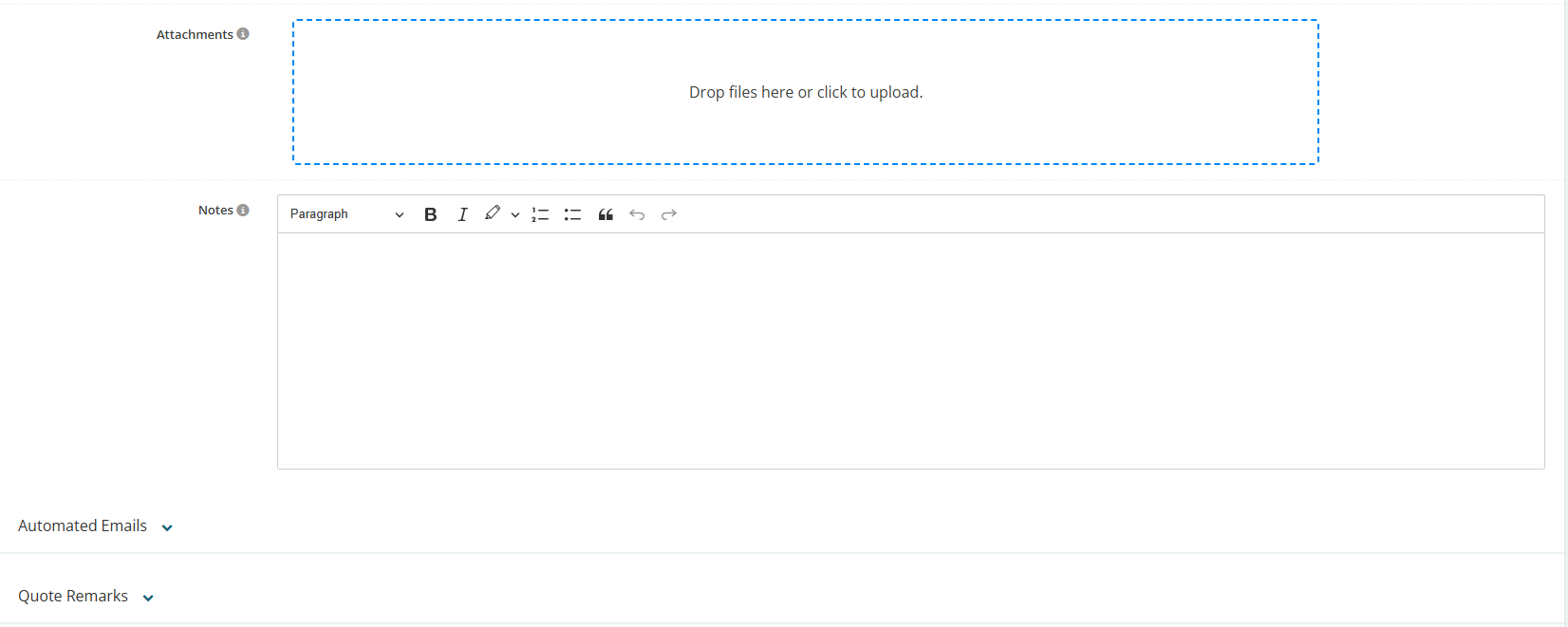
Attachments: Add quotation attachments.
-
Notes: Add any important information you want in the notes field. These notes will appear in the notification email sent to the logistics provider and when the provider is filling in the quote in the system.
-
Automated Emails: Edit, if necessary, the rejection thank-you letter and the approval letter for the selected logistics provider.
-
Quotation Remarks: Add the general terms and conditions of this shipment.
After completing the information, click Save Draft if any critical information is missing but you want to save the progress made so far. Otherwise, click Submit.