
At Cargo Sapiens, Temporary Import or Export was designed to be fast and require minimal operational effort.
This type of operation applies to cargo that enters or leaves the country for a specific period and purpose—such as fairs, events, tests, or demonstrations—and returns to its origin after the authorized deadline.
How the system simplifies the operation:
-
When you create the outbound quotation, the system automatically directs you to open the return quotation.
-
The return quotation is created with pre-filled information, avoiding duplicate data entry.
-
You only adjust what is necessary, ensuring consistency between outbound and return.
-
The link between the two quotations is clear, making it easier to track the operation as a whole.
See below how to proceed.
To access our complete tutorial on opening an international SPOT quotation, please refer to the specific tutorial for that purpose, as we will now focus on opening temporary import or export operations.
When you are on the SPOT quotation creation screen and fill in the fields “Mode” (Import or Export) and “Incoterm”, a new option will appear at the bottom of the page under “Additional Service”: “Temporary Export” or “Temporary Import.”
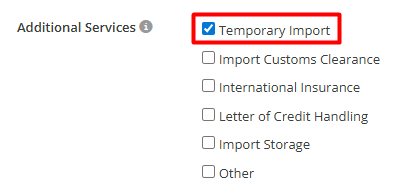
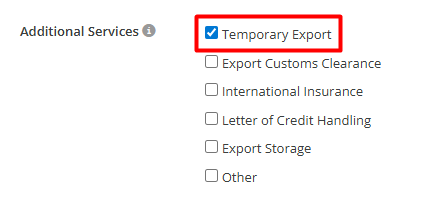
As explained earlier, for every Temporary Import or Export quotation, you must always create the opposite quotation. That is:
-
If you submit an Export quotation, you must also submit an Import quotation.
-
If you start with an Import quotation, you must create the corresponding Export quotation.
In addition, the suppliers involved in this process must necessarily participate in both quotations. For this reason, to reduce creation errors and automate the process, after creating a temporary Import or Export, you will automatically be directed to another creation screen—but for the opposite route.
⚠️ Attention: If a supplier is not included in both quotations or is removed after only one has been opened, inconsistencies may occur on the supplier’s side, such as failure to access the quotation due to screen errors or incorrect loading.
To avoid these issues, always ensure that suppliers are aligned and active in both linked quotations. This ensures a stable experience and prevents operational impacts.
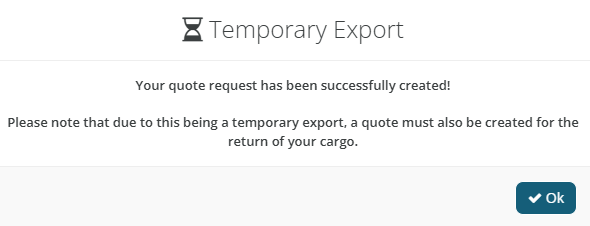
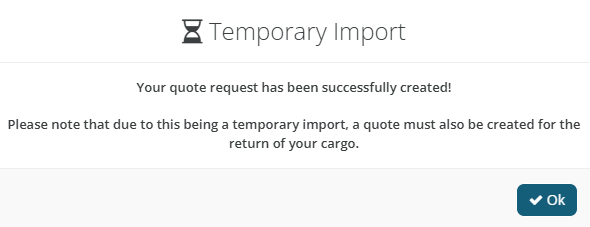
When filling in the information for a temporary (outbound) SPOT quotation and clicking “Submit,” the following pop-up will appear:
-
Representation of the creation of an Export
-
Representation of the creation of an Import
After clicking “OK,” you will be redirected to the quotation opening screen.
Finally, we recommend that the final deadlines for both quotations be similar and close to each other, in order to avoid issues during the service contracting stage.