
Attention: This tutorial is specifically for Cargo Sapiens clients and should not be used by logistics providers.
Access the system in the environment where you intend to nominate a logistics provider. It is important to note that each client has a dedicated environment, meaning that all records and information generated within this space are confidential and private.
Within the quotation, click on the blue "Analyze Quote" button located at the top center of the screen to view the proposals and proceed with the nomination.

You will be redirected to another page, where all supplier proposals will be displayed, ranked from the most to the least competitive based on pricing. You can reorder the ranking by clicking on the column headers, such as transit time or other relevant criteria.
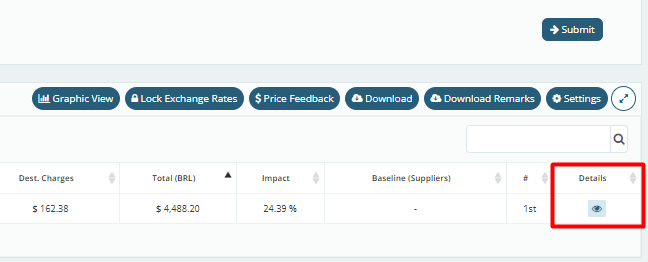
Once you have decided which provider to move forward with, click on the Details button—represented by the eye icon—next to the selected company.
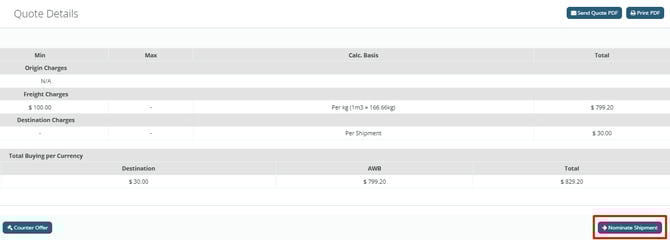
The system will display an additional page where you can review all the details and pricing breakdown of the logistics provider. After reviewing the information, click the green "Nominate Shipment" button located at the bottom right of the screen to begin the nomination process.
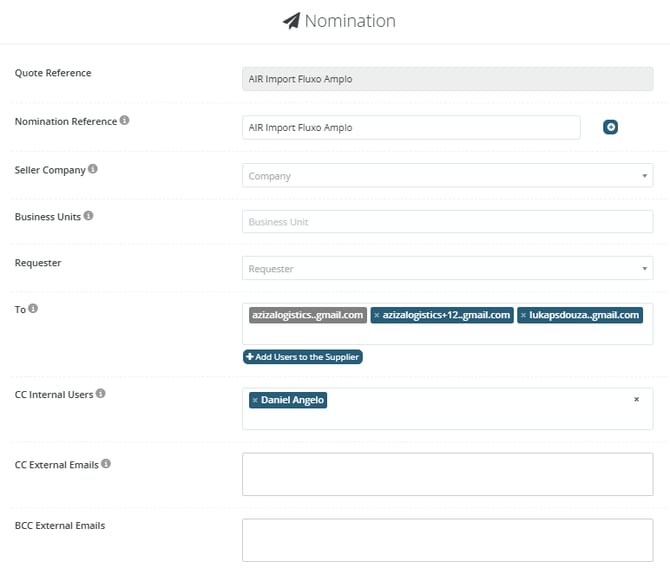
Next, you will be required to fill in several fields:
-
Nomination Ref.: You may add a reference to help locate the nomination later in the system.
- Buyer/Seller Company: The name of this field will depend on the type of operation – import or export. Select the counterpart involved in this shipment.
-
Business Unit: You can link the nomination to a specific business unit.
-
To: The system will display the email addresses associated with the logistics provider selected for the shipment, allowing the client to define which contacts will receive the notification.
-
CC Internal Users: This field will automatically load a list of all users registered in the client's environment, enabling the inclusion of additional team members in copy.
-
CC External Emails: You may include external email addresses (e.g., your freight forwarder) to receive the nomination notification.
- BCC External Emails: Add email addresses that should receive the nomination notification as blind copy.
-
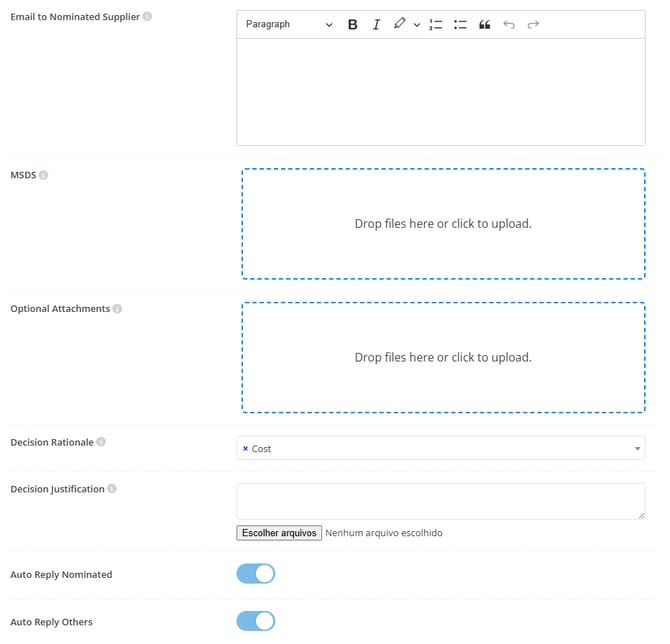
Email to Nominated Supplier: Customize the email that will be sent to the nominated logistics provider, for example, by including shipment instructions.
-
MSDS: If the nomination involves hazardous cargo, attach the relevant MSDS document.
- Optional Attachments: Add any optional files relevant to the quotation.
-
Decision Rationale: If the selected provider submitted the most competitive offer, the system will automatically pre-fill the "Cost" option. Otherwise, you may choose another rationale.
-
Decision Justification: If the selected provider is not the most competitive or if there are specific considerations to add, use this field to provide additional justification.
Lastly, you may choose to enable the following options:
-
Send an automatic email to the nominated provider notifying them of the nomination.
-
Send a thank-you letter to the declined logistics providers.
Once all fields have been completed, click the "Nominate" button to finalize the nomination.
After clicking on nominate, the system will redirect you to the internal quote page and process your request. This process may take a few seconds, please wait for it to be completed.