
Access the system in the environment where you intend to enable the reopening approval function. It is important to emphasize that each client has an exclusive environment, which means all registrations and information generated in that space are confidential and private.
In the left sidebar menu, click on 'Settings'. Then, locate the 'Compliance' tab to enable the 'Reopen Workflow' option.
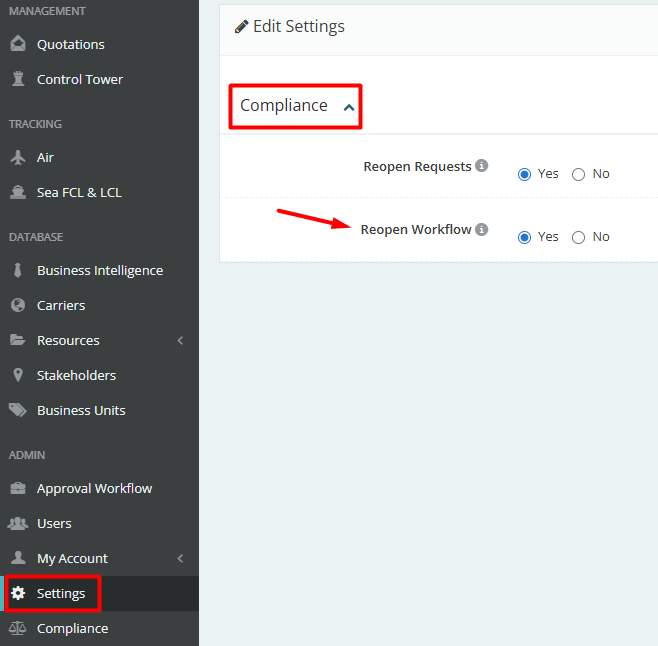
Next, click on 'Compliance' in the left sidebar menu. Then, define which users will be registered in the 'Approvers' field and what the 'Workflow Group List' will be.
Click the 'Add' button to register a new approver or a new group.
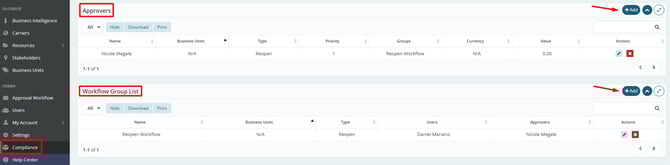
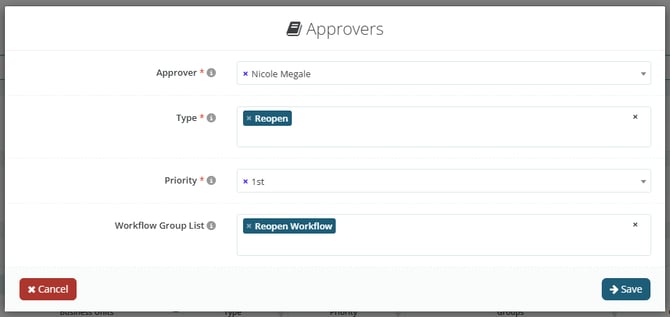
Defining an Approver, you will have the options to select the Flow Type, the Priority, and which Group they will participate in.
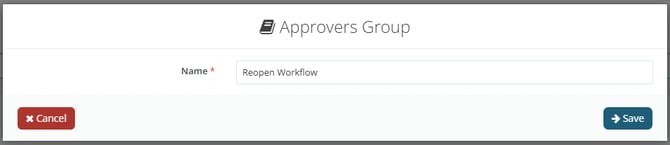
Defining a Group, you will have the option to register the Group Name.
Now, note that in our Reopening Flow Group, the Approver was defined in the Approvers field, but the 'User' who must follow this flow is not selected on this Compliance screen, but rather on the 'Users' screen.

To do this, click on 'Users' in the left sidebar menu and click on the eye icon in the 'Actions' column for the desired user.
Next, click the Edit User button and, finally, select the desired Group.
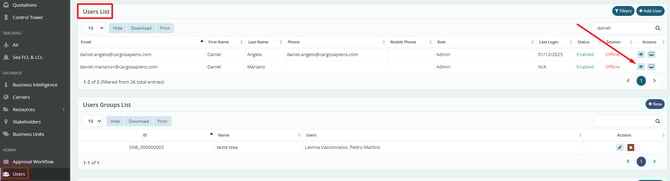
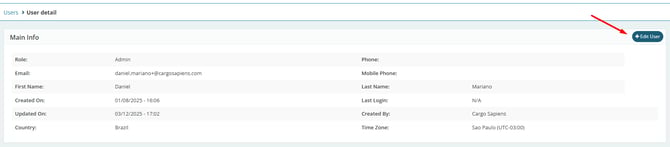
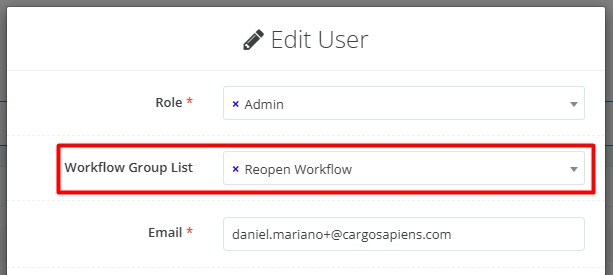
Concluding this configuration step, we will now see how it works in practice for the user who must request reopening approval.
After accessing the quote that has the status 'Ended', locate the 'Quote' field and click the 'Reopen' button.

Next, define the required fields:
- Internal Note - to justify the reopening request; send an attachment if necessary;
- Adjust the Time Zone, if necessary.
- New Deadline
- Notify Suppliers - enable if you want to inform suppliers about the quote reopening.
- Remember that this option will appear if this option is enabled in the platform's general settings, in the Compliance field.
- Finally, register a Message for suppliers detailing the reopening.
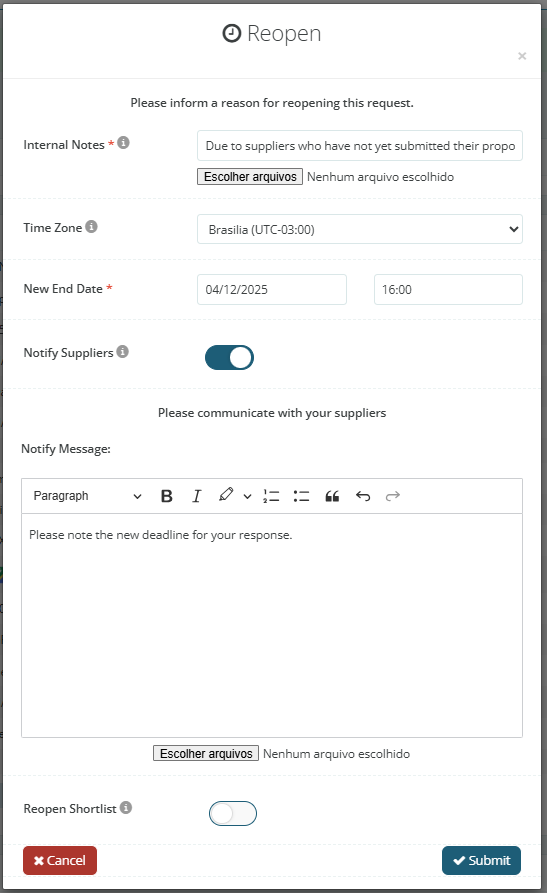
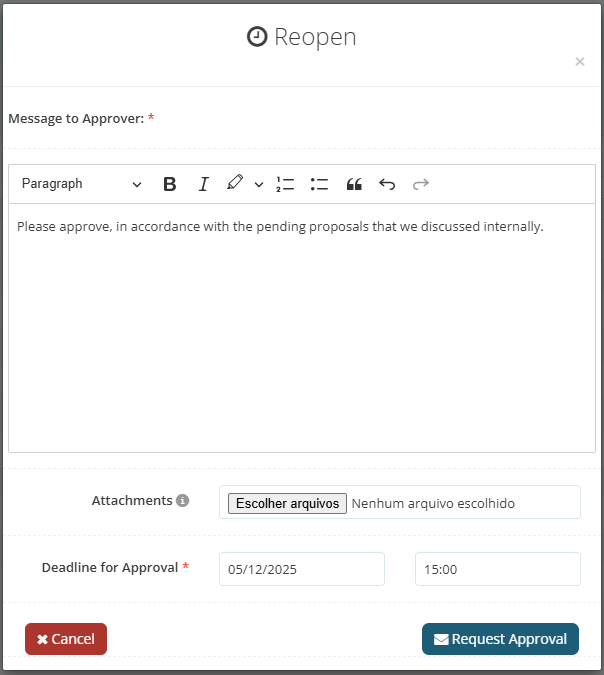
Immediately after, we have the screen to define the 'Message to Approver' and the 'Deadline for Approval', as well as an attachment field if necessary.
Next, after the reopening approval is sent, the user can track the request status through the 'Approval Workflow' screen, by clicking on the left sidebar menu.

In conclusion, we will now see this same screen from the approver's perspective, where they can access the 'Quote' to see the details and then choose to 'Approve' or 'Decline' by clicking the corresponding button in the 'Actions' column.

Finally, regardless of the choice, the approver will be directed to the final phase of the process, with a field where they must register a message to the requesting user, justifying their decision.