
To strengthen compliance and operational control, we have implemented the approval flow functionality.
Currently, the system has different types of flows, each targeting a critical point in the process:
-
Approval of quotation requests
-
Approval of reopenings
-
Approval of counter-offers
-
Approval of nominations
With these flows, pre-defined users (one or more) have the authority to approve or reject actions performed in the system, ensuring traceability, standardization, and reduction of operational risks.
In this tutorial, you will learn how to configure and use the nomination approval flow, ensuring that supplier choices follow internal rules and only proceed after proper validation.
Access the system in the environment where you intend to configure the nomination approval flow. It is important to emphasize that each client has an exclusive environment, which means all flows and information generated in this space are confidential and private.
In the left sidebar menu, click on 'Settings'. Then, locate the 'Compliance' tab to enable the 'Nomination Approval Flow' option, or search in the field at the top right of the screen. It is necessary to enable the nomination approval flow by modal.
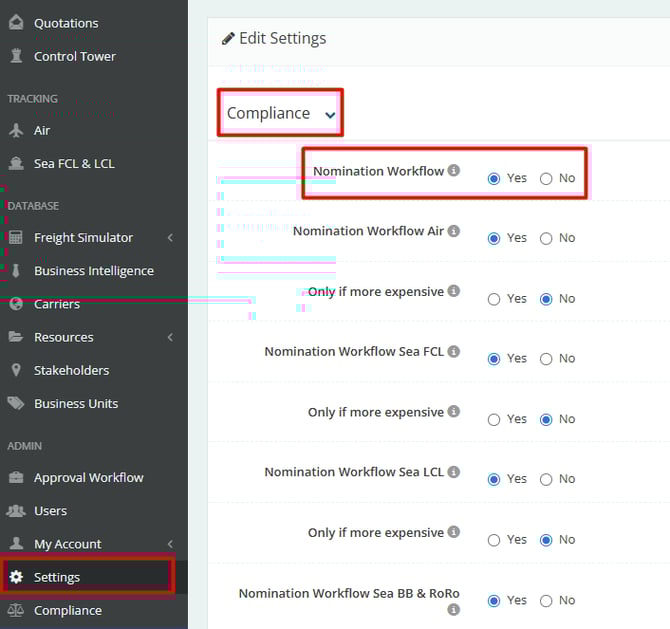
The 'Only if it is more expensive' option should only be activated when there is no need to approve freight rates that are already the most competitive according to the equalization table. In other words, in this configuration, when selecting the best freight quoted by providers for the route, the system will not submit the nomination to the approval flow.
Next, access the left sidebar menu and click on Compliance.
In the Workflow Group List table, create an internal name to identify this approval process. This identification will be extremely important if:
-
there is more than one type of approval flow active or to be created;
-
different approvers are defined for distinct users, even within the same type of approval flow.
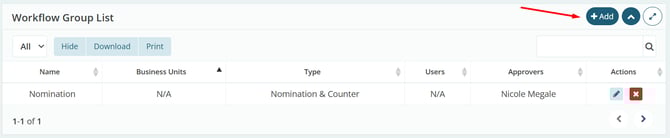
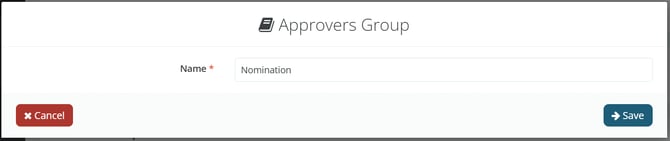
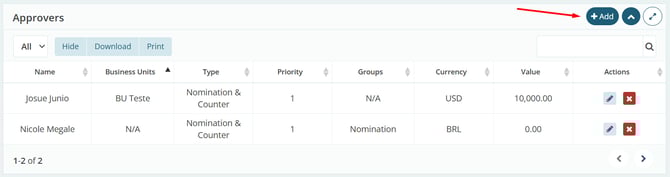
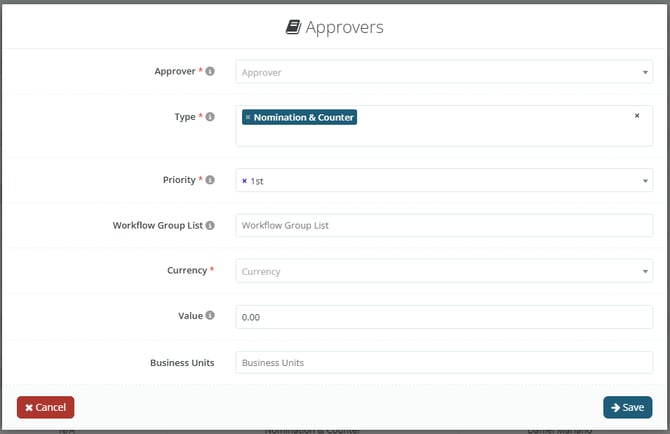
Next, in the 'Approvers' table, select the users who will have permission to approve or reject nominations. To include new responsible parties, click 'Add'.
-
Approver Field: Select the user who will be responsible for approving nominations.
-
Type Field: indicate the Approval Flow Type for which they will be responsible. In this tutorial, we will select the Nomination type.
-
Priority Field: define the Priority of the approver. This field determines the approval order, for example, who approves first and who approves next.
-
Workflow Group List Field: you will select the group created previously.
-
Currency and Value Fields: shown below, should be used only when approval depends on the total freight value. In practice, this allows for the creation of approval rules by financial limit. Example: if Approver X must analyze only counter-offers whose freight value exceeds R$ 70,000, configure it as follows. This way, the approval flow is only triggered when the value reported in the counter-offer exceeds the defined limit, ensuring financial control without generating unnecessary approvals.
-
Currency: BRL
-
Value: 70,000.00
-
-
Business Units Field: if there is an approver per business unit, select it in this field; this way, only quotes marked with that business unit will reach that approver.
Notice regarding the 'Priority' field: priority only applies when there is more than one approver configured for the nomination approval workflow. Otherwise, the flow will go directly to the single defined approver and should be kept as "1st".
Attention! If it is not necessary to configure approval rules based on the freight cost, leave the currency field as BRL and the value field as zero.
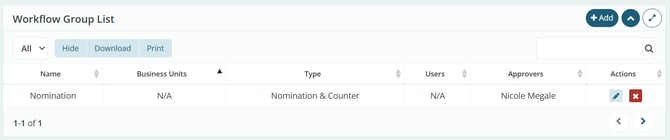
Upon returning to the Workflow Group List table, note that the Approver already appears correctly, while the User field remains blank. This is expected: at this moment, the group is created, but there are no users linked to it yet.
To define which users will have their actions submitted for approval in this workflow, follow the steps below:
-
Access the left-side menu Users.
-
Locate the desired user and click the view icon (eye icon) in the Actions column.
-
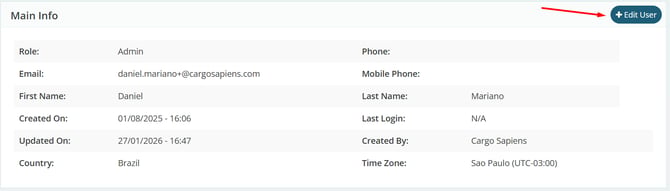
Click Edit User.
-
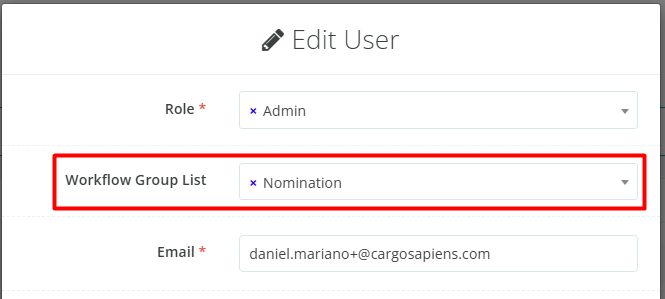
In the Workflow Group List field, select the group previously configured.
From this linkage onward, all nominations performed by this user will automatically go through the defined approval workflow.

Concluding this configuration step, we will now see how it works in practice for the user who must request nomination approval.
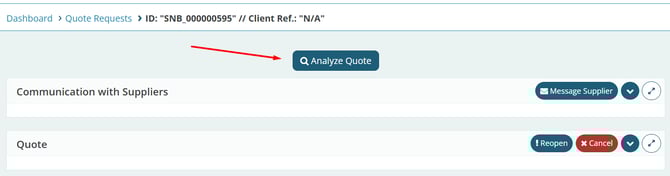
After accessing the quote with 'Ended' status, click the 'Analyze Quote' button to view the proposal equalization screen in 'Contracts Found'.
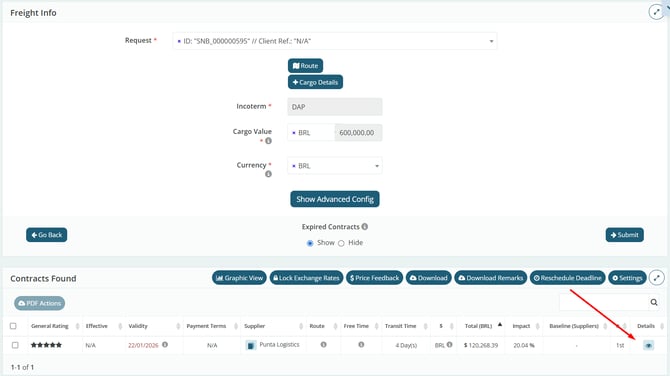
On this screen, click the eye icon in the 'Details' column, according to the offer for which you wish to submit the nomination approval.
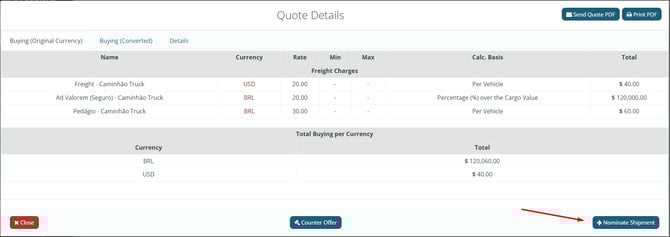
Then, click the 'Nominate Shipment' button, fill in the appropriate fields on the Nomination screen, and click the 'Request Approval' button.
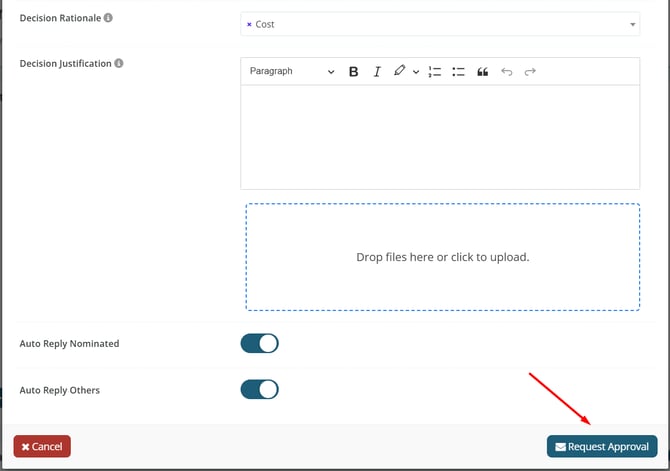
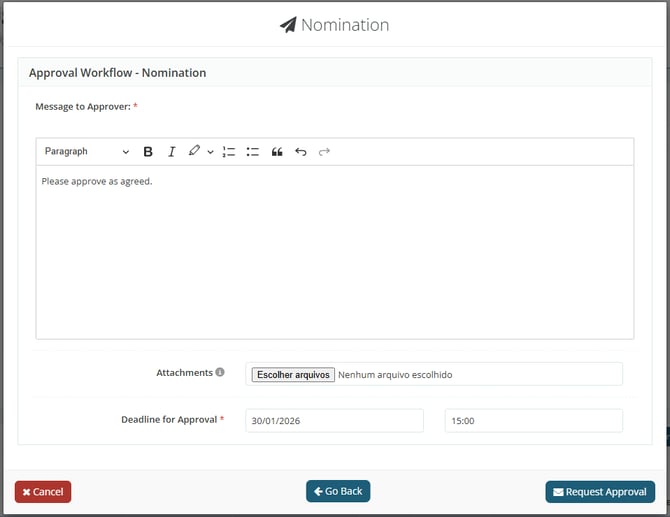
Next, provide a 'Message to Approver', set a 'Deadline for Approval', and click the 'Request Approval' button again.
Next, after the nomination approval is submitted, the user can track the request status through the “Approval Workflow” screen by clicking the left-side menu.
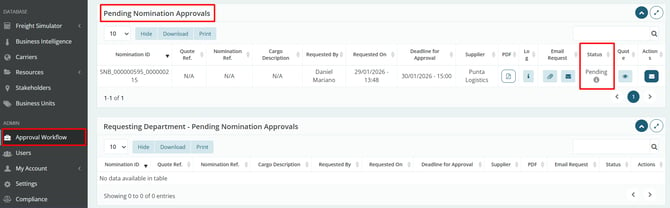
Finally, we will now view this same screen from the approver’s perspective, where they can access the 'Quote' to review the details and then choose 'Approve' or 'Decline' by clicking the corresponding button in the 'Actions' column.

Finally, regardless of the choice, the approver will be directed to the final stage of the process, where there is a field to enter a message to the requesting user, justifying the decision. All this information is recorded in the Nomination Log.