
Why is this relevant?
Since there is sensitive information regarding quotations, depending on the user’s role, it is important to filter the information they can access within the platform.
Permissions limit or allow access within the system.
Initially, it is important to note that when registering a user, the system automatically fills in the Role as “Admin”, indicating that the registered user will have administrative permissions and will be allowed to perform all actions within the environment. Therefore, roles must be created before creating users. Permissions are applied immediately after saving.
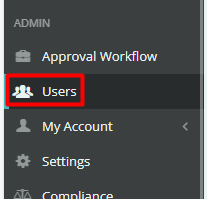
On the left side menu, click on “Users”.
Then access the “Roles List” section and, on the right side of the screen, click on “+New Role”.
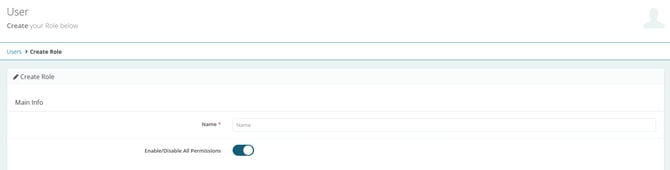
You will be redirected to a new page where you will configure user permissions.
Add the role name and, if desired, to make the process easier, disable (or enable) all permissions to activate (or deactivate) them manually.
Below is an explanation of all sections for better understanding:
Business Intelligence
-
View: If enabled, allows viewing dashboards, reports, and KPIs.
Control Tower
-
View: If enabled, allows viewing operational monitoring of shipments and events.
Log
-
View: If enabled, allows consulting event records and system action history.
Benchmarking Tariffs
-
All: If enabled, grants full access to tariff benchmarking features.
Message to Suppliers
-
All: If enabled, allows sending messages to suppliers directly through the platform.
Suppliers
Defines permissions related to supplier registration.
-
View: View suppliers
-
Create: Create new suppliers
-
Edit: Edit existing data
-
Disable: Deactivate suppliers
Spot Quote Requests
Controls the spot quotation workflow.
-
View: View requests
-
Create: Create new requests
-
Edit: Edit existing requests
-
Cancel: Cancel requests
-
Draft: Save requests as draft
SPOT Quote Requester Mode
Configures visibility and action restrictions for the requester.
-
Display Only Quotes Requested by the User: The user sees only the quotes they created.
-
Block Actions for Statuses Beyond Draft: Prevents actions once the quote moves beyond Draft status.
Bid Quote Requests
Controls the BID request lifecycle.
-
View: View existing BID requests
-
Create: Create new BID requests
-
Edit: Modify active requests
-
Ended: View and interact with closed BIDs
Bid Settings
Defines access to BID structural settings.
-
Trade Lanes: Configure and associate trade lanes to BIDs
-
Routes: Define routes used in BID processes
-
Detailed BID View: Enable detailed BID data view
Tariffs
Controls tariff management.
-
View: View tariffs
-
Create: Register new tariffs
-
Edit: Modify existing tariffs
-
Delete: Remove tariffs
Spot Quotes Management
Manages responses and decisions in spot quotes.
-
View: View supplier responses
-
Save: Save changes or intermediate analyses
-
Nominate: Select the winning supplier
-
Edit: Modify quote data during the process
Bid Quotes Management
Manages supplier responses in BIDs.
-
View: View received proposals
-
Save: Save analyses and adjustments
-
Nominate: Select BID winners
-
Edit: Adjust proposal data
-
Round View: View proposals by round
Resources
Controls access to operational resources (e.g., assets, auxiliary tables, support entities).
-
View: View resources
-
Create: Create new resources
-
Edit: Modify resources
-
Delete: Delete resources
Business Unit
Defines which business units the user can access.
-
Each switch represents an independent BU.
-
Only enabled BUs will be available.
Quotes Lanes
Defines which types of logistics flows the user can operate, by context.
-
Requests for Quote: Controls creation of new requests
-
Saved Quotes: Controls viewing and reuse of saved quotes
-
Control Tower: Controls operational monitoring
Quotes Modals
Defines which transport modes the user can use, also by context.
-
Requests for Quote: Available modes for creating quotes — Air, Ocean FCL, Ocean LCL, BB & RoRo, and Charter
-
Saved Quotes: Available modes for consultation and reuse — Air, Ocean FCL, Ocean LCL, BB & RoRo, and Charter
-
Control Tower: Available modes for monitoring — Air, Ocean FCL, Ocean LCL, BB & RoRo, and Charter
Quotes Status
Defines which quote statuses the user can view in lists, filters, and dashboards.
-
Open: Displays ongoing quotes
-
Closed: Displays completed quotes
-
Nominated: Displays quotes with a selected supplier
-
Cancelled: Displays canceled quotes
Menu
Defines which system sections appear in the main menu.
-
Dashboard: Access to consolidated views and KPIs
-
Management: Access to management screens (e.g., decisions, nominations)
-
Tracking: Access to operational tracking
-
Quote Requests: Access to creation and viewing of quote requests
-
Saved Quotes: Access to saved and reusable quotes
-
Database: Access to databases (tariffs, records, history)
Admin Menu
Defines which administrative areas appear in the user menu.
-
Approval Workflow: Configure and manage approval flows
-
Users: Manage platform users
-
Settings: Access global system settings
-
Integrations: Configure and maintain external integrations
-
Compliance: Access audit, compliance, and internal control features
Users
Controls what the user can do in user administration.
-
View: View existing users
-
Create: Create new users
-
Edit: Edit user data and permissions
-
Disable: Deactivate users
Settings
Controls access to global settings.
-
View: View settings
-
Edit: Modify system settings
Freight Simulator
Controls access to the freight simulator.
Finally, just click save.