
Access the system in the client environment where you want to respond to the SPOT road freight quote. It is important to note that each client has a unique environment, which means that all records and information generated in this space are confidential and private.
Identify the SPOT quote you want to respond to and make sure that the quote status on the right-hand side is "Open".

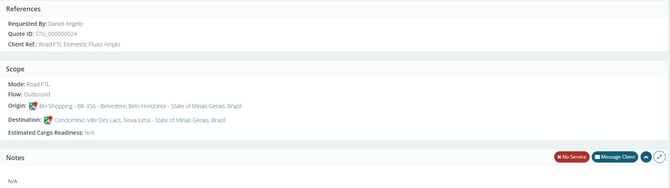
In the first tables on the page, carefully read the information entered in the "References", "Scope", and "Notes" fields, as they refer to the shipment details. This also applies to the fields for cargo type, stackable or not, description, value, and cargo details.
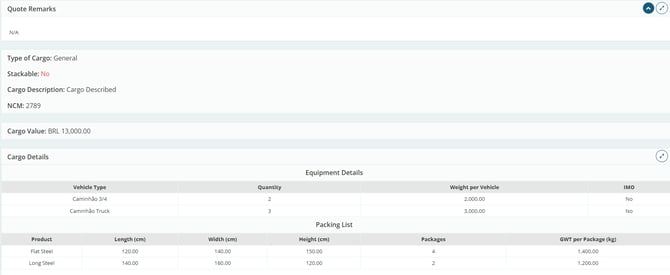
In "Cargo Details", for an FTL, check which vehicle is requested and the cargo details. For an LTL, instead of a vehicle, you will see "Partial Load" described.
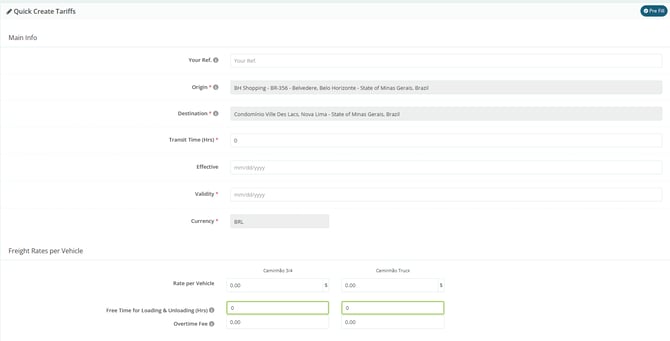
Next, in "Quick Rate Creation", you must enter your offer, paying attention to the fields marked with a red (*) — these are mandatory.
-
Your Reference: this reference field can be used for an internal reference;
-
Origin: this field is pre-filled with the address selected by the customer;
-
Transit Time: here, you should enter the transit time in days;
-
Effectiveness: indicates from which date your price will be valid. The system automatically pre-fills this with the date when you are completing the quote;
-
Validity: indicates until when the rates you entered are valid;
-
Currency: currency of the quote;
-
Freight Rates: enter the amount per vehicle in the case of FTL, or per kilogram in the case of LTL;
-
Loading & Unloading Allowance (Hrs): indicate the free time (without charge) for loading and unloading the vehicle, in hours;
-
Daily Fee: if the free loading/unloading time is exceeded, enter the daily fee to be charged.
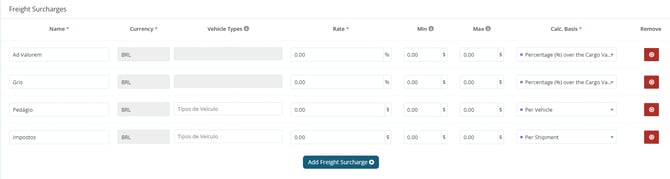
Then, enter your freight surcharges such as Ad Valorem, GRIS, Toll, and/or Taxes, and upload any files or remarks if necessary.
Click "Proceed".

Then, to complete the process, click "Confirm" on the right-hand side of the proposal table.