
Access the system in the environment where you intend to edit a quote. It's important to note that each client has a unique environment, meaning all registrations and information generated within that space are confidential and private.
When editing nominations, only the 'Nomination Ref' and 'Business Unit' fields can be modified due to compliance reasons. If changes to other fields are necessary, you'll have to cancel the current nomination and create a new one. This is because, at the time of nomination, the system records all available information from the quote and the logistics provider's tariff. Thus, if it becomes necessary to consult or audit this data in the future, it will be properly preserved.
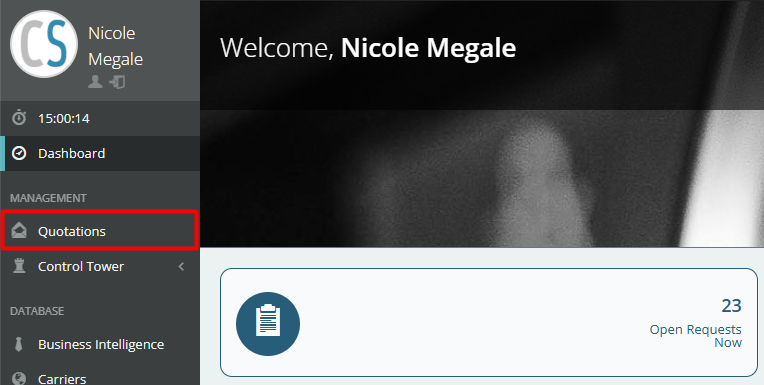
To start the step-by-step process, in the left side menu, click on Quotations in the Management section.
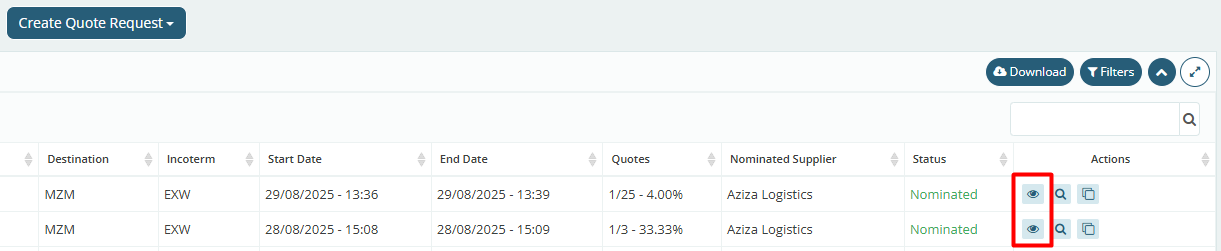
Next, click the "Details" button on the right side of the quotation where this nomination was made, represented by the eye icon.
Identify the "Nominations" table at the bottom of the screen and click Expand on the right side of the table. Once this section opens, click the button with the pencil icon on the right side of the table.

The system will open the editing tab, where only the 'Nomination Ref.' and 'Business Units' fields can be changed, as previously mentioned. The 'Nomination Ref.' field serves to identify the nomination, and an internal code can be used, for example. The 'Business Units' field will associate the nomination with the respective business unit.
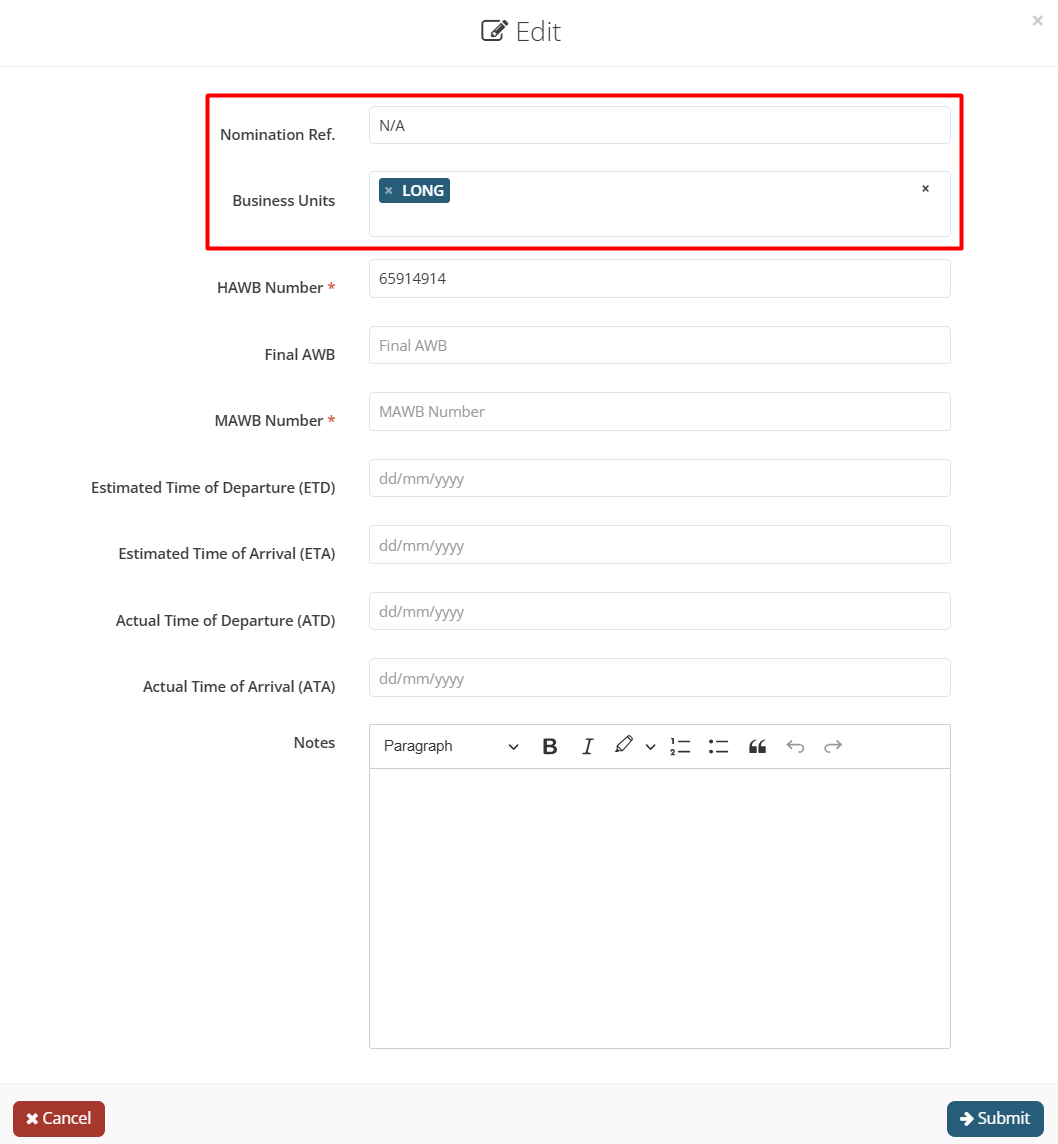
It is also possible to add additional information, such as the BL or AWB number, or the ETD and ETA dates. If this data has already been provided in the Control Tower or entered during the invoice verification process, it will be possible to make adjustments to these fields.
Next, simply click "Submit" at the bottom right of this tab to complete the process and save the changes.