
Access the system in the environment where you intend to apply or remove filters from the table. It is important to note that each client has a dedicated environment, which means that all records and information generated within this space are confidential and private.
Filters help simplify the visualization of quotations according to their status. If a quotation is not visible to you (BID or SPOT), ensure that no filter is currently active.
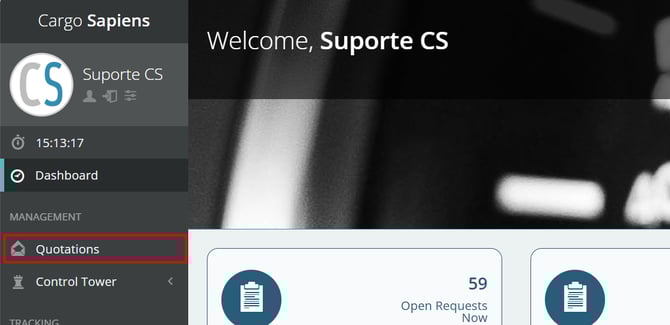
In the left-hand side menu, click on "Quotations."
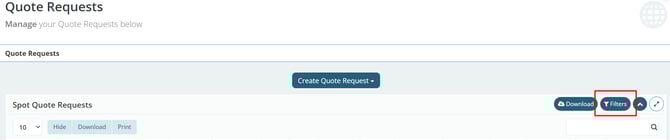
Click on the "Filters" button located at the top right of the quotations table to select the filters you wish to apply.
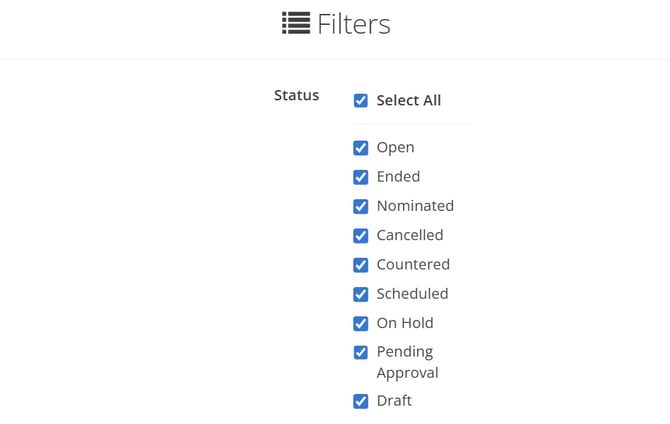
Check the boxes for the filter criteria you want to use, related to the Status:
-
Open: Quotations that have not yet reached the deadline and therefore still allow offers to be submitted by logistics providers.
-
Ended: Quotations for which the deadline has passed but a nomination has not yet been made for the route.
-
Nominated: Quotations that have reached the deadline and have already been nominated.
-
Cancelled: Quotations that have been canceled.
-
Countered: Quotations for which you submitted a counteroffer to one of the logistics providers and are awaiting analysis, i.e., not yet nominated.
-
Scheduled: Quotations scheduled to be sent automatically to logistics providers on a specific date.
-
On Hold: Quotations that have been marked as on hold.
-
Pending Approval: If there is an approval flow for sending RFQs to logistics providers, the quotation will remain in pending approval status until approved by the responsible party.
-
Draft: Quotations saved as drafts and therefore not yet sent to logistics providers.
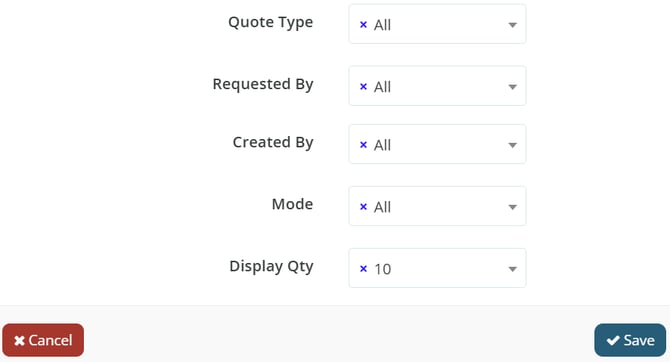
There are additional filter options beyond Status, such as:
-
Quotation Type: Select the desired option related to the type of quotation.
-
Market Test: Quotations marked as market studies.
-
Regular Quote: All quotations that do not fall under the Market Test category.
-
-
Requested by: Select the appropriate option related to the requesting user. This field should only be used if you have an approval flow for requesters; otherwise, disregard it.
-
Created by: Select the appropriate option related to the user who created the quotation.
-
Mode: Select the desired option related to the transportation mode.
-
Display Qty: Select the desired option related to the quantity displayed in the SPOT quotation table. This setting will be saved for future sessions when accessing the system.
Click the "Save" button to apply the filters and return to the Quotations Table.